HOW TO SHARE OTHER FILE TYPES
(DOCUMENT FILES) IN ANDROID DEVICE

The share option in Android devices varies depending on the app installed. In this guide, we'll discuss only the recommended apps which can be used in any Android OS device.
DOCS TO GO FREE
1.) Search the app in Play Store, download and install it in your device.
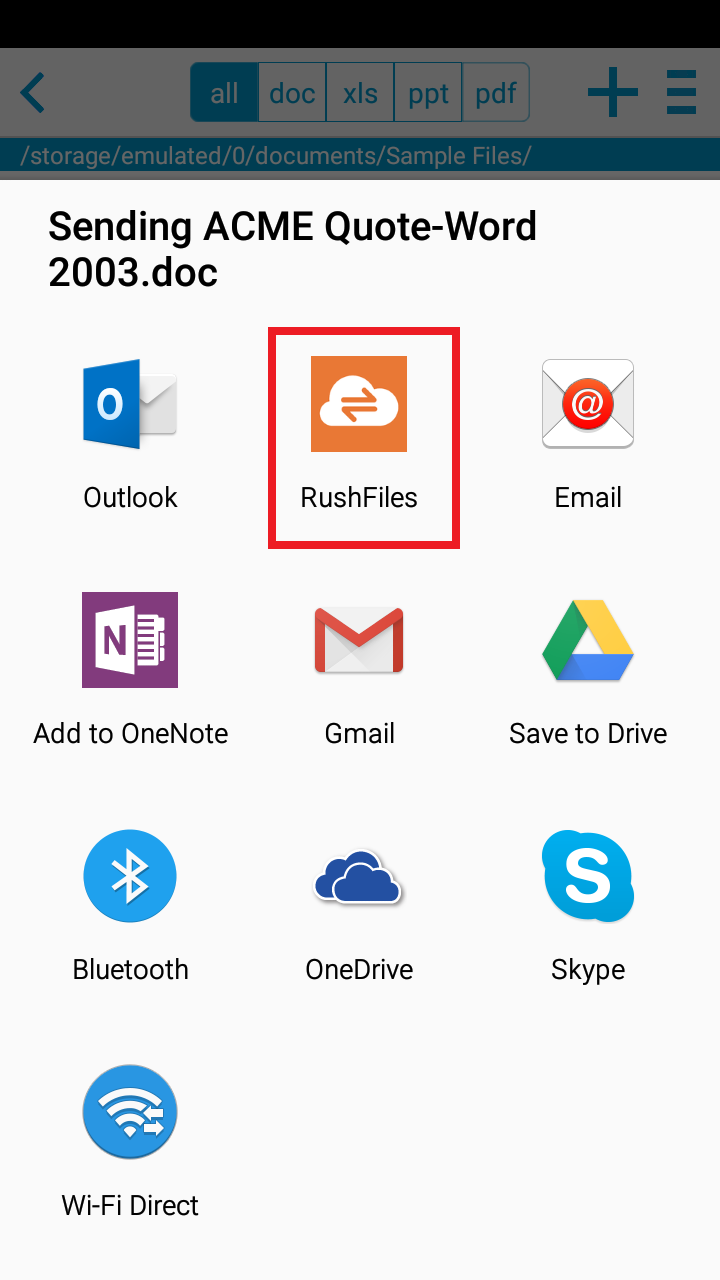
3.) Select/tap "Send"
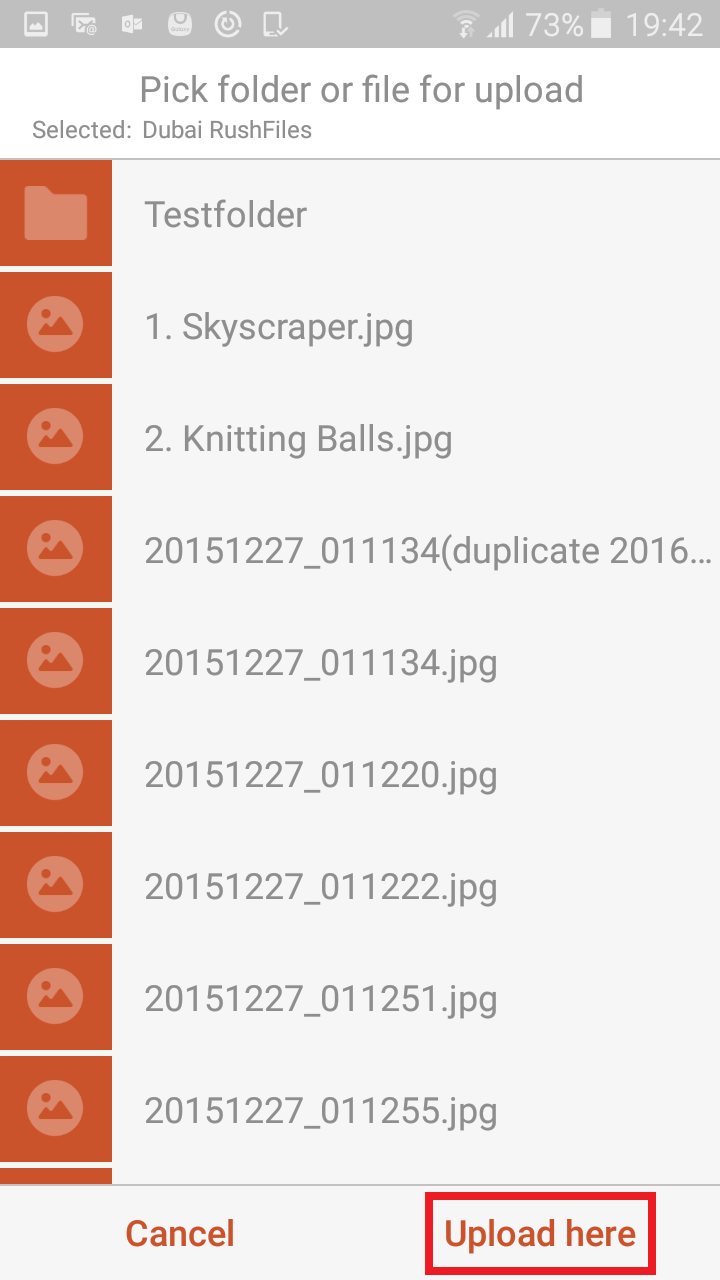
5.) This will automatically open RushFiles app.
Choose the folder where you wanted to upload it, then tap Upload here to confirm.
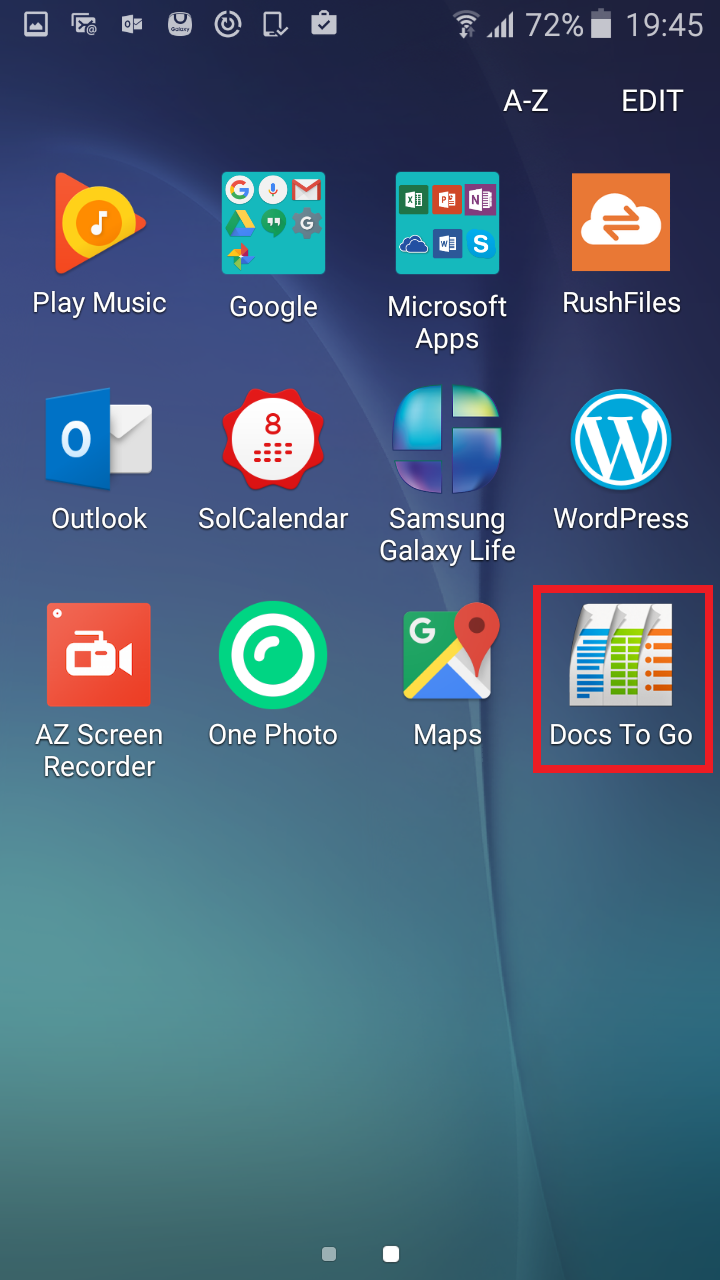
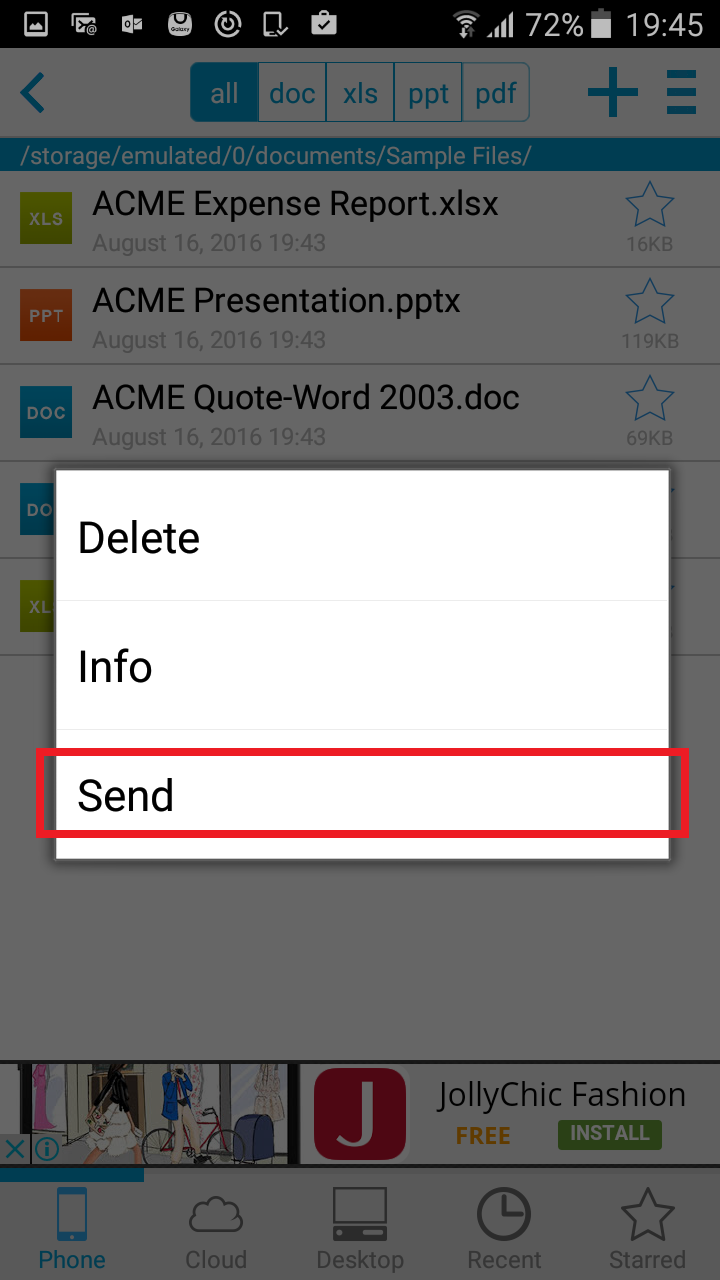
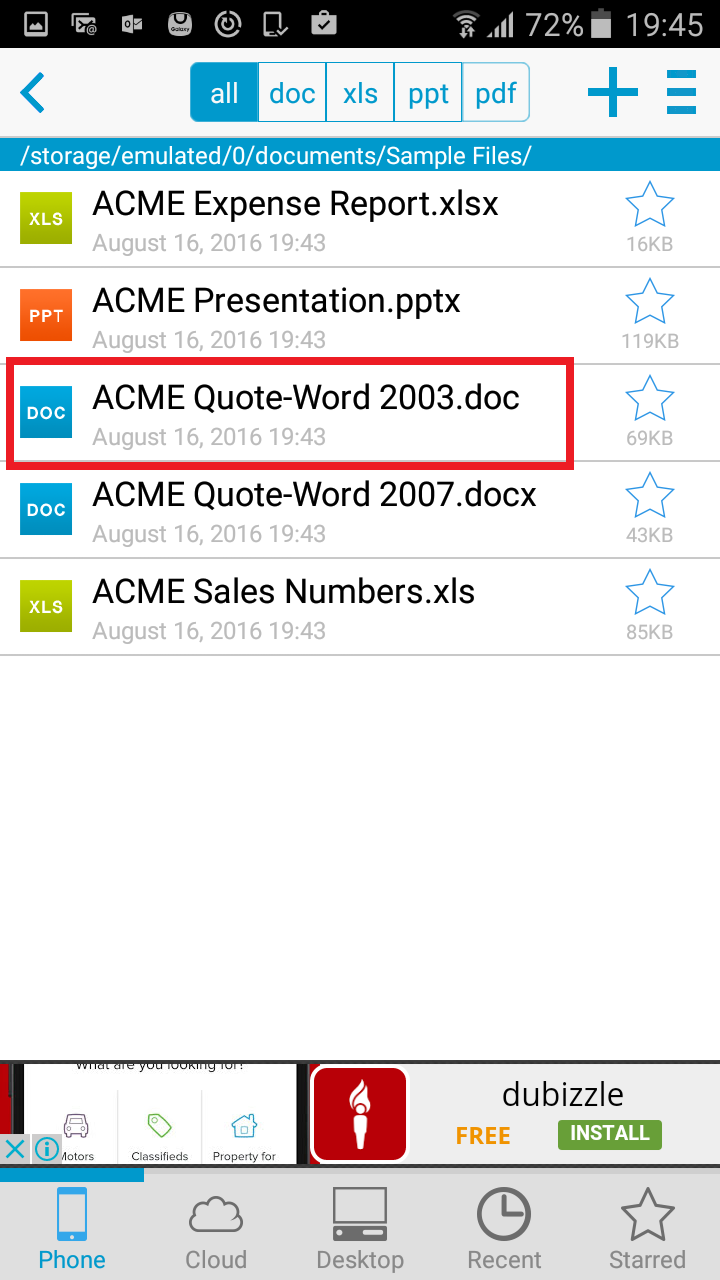
2.) Open the app, in this example we will be selecting existing Word document.
Tap and hold the file.
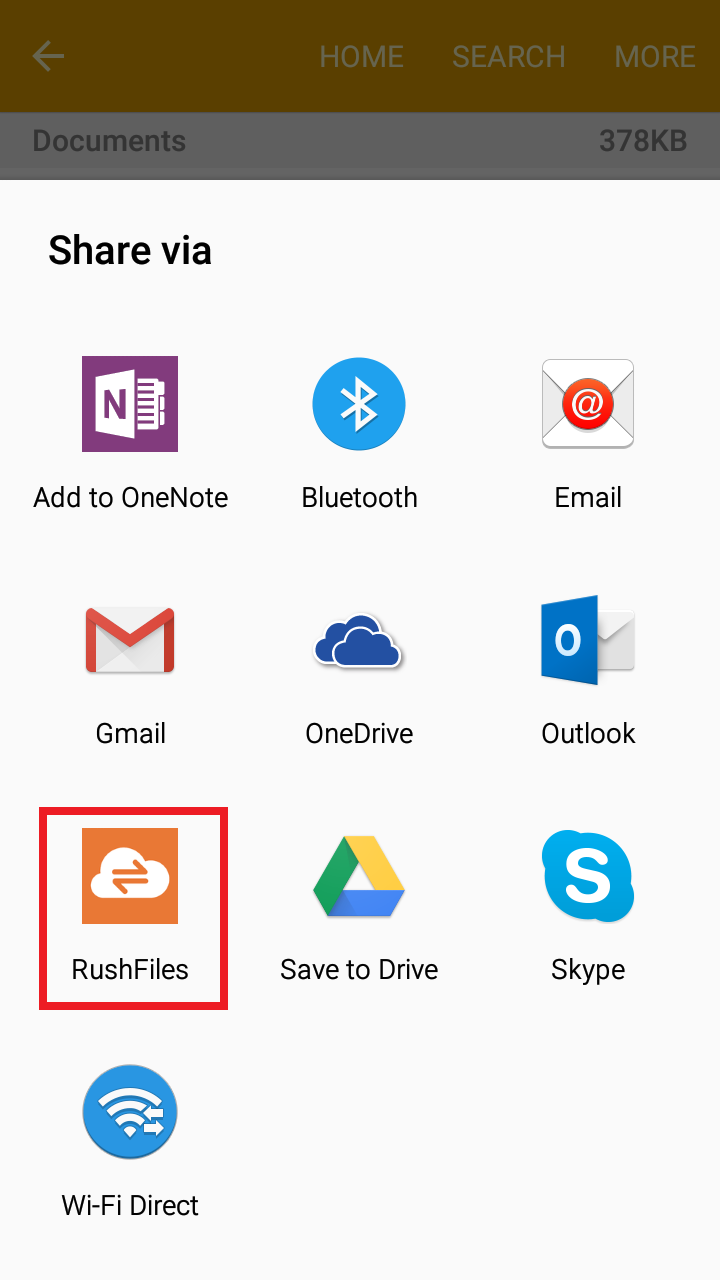
4.) Select/tap "RushFiles" icon.
MY FILES OR FILE EXPLORER
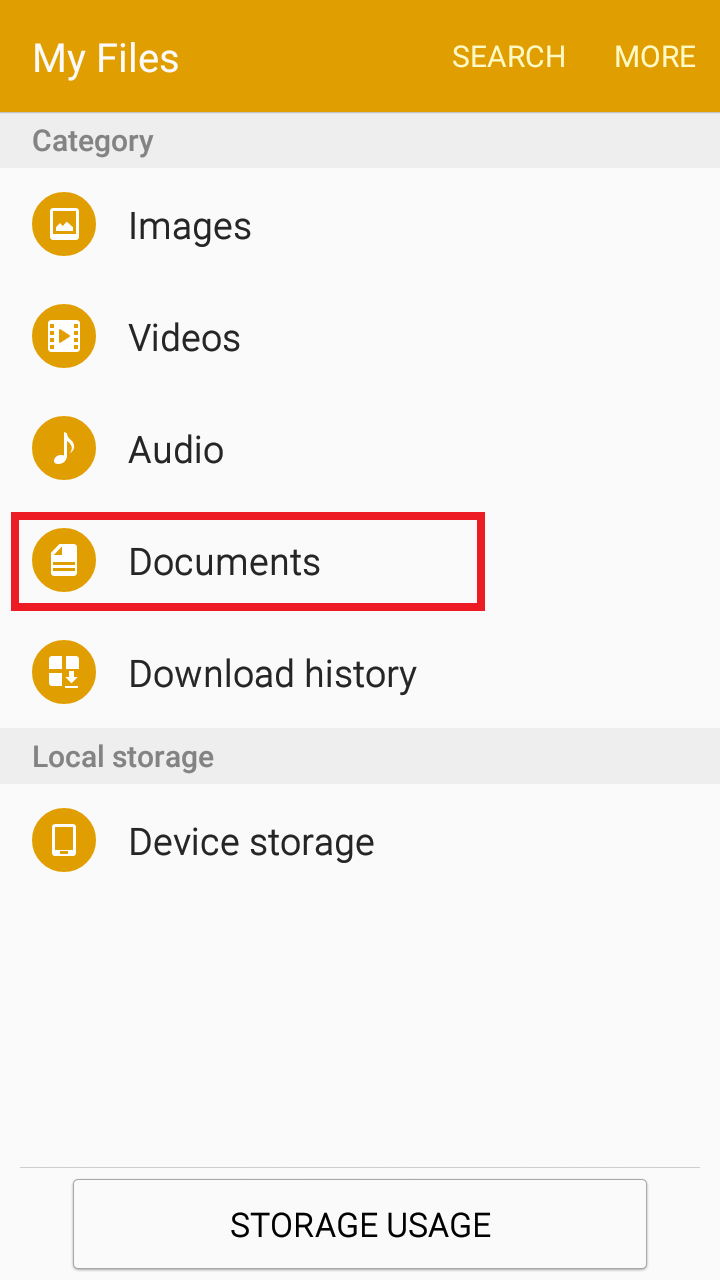
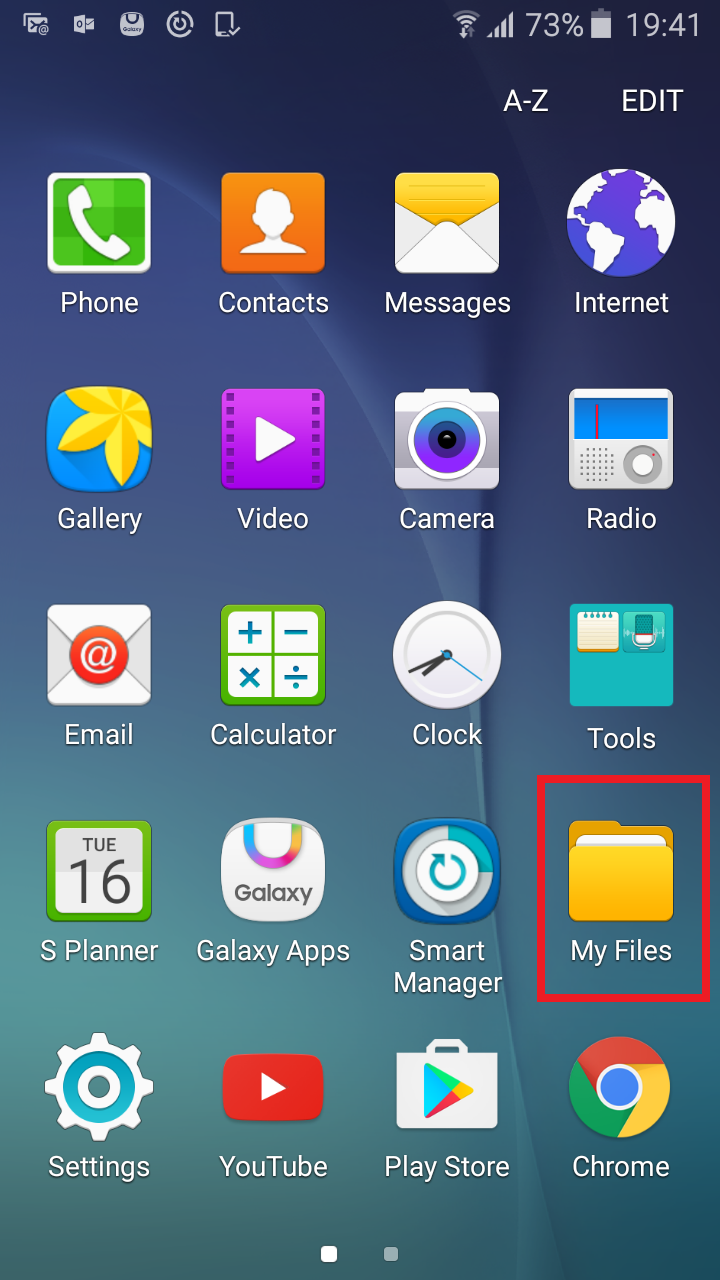
1.) The Android device usually comes up with default app called "My Files" or "File Explorer" depending on the brand you are using.
In this example, we'll be using Samsung device. Tap the icon to open the app.
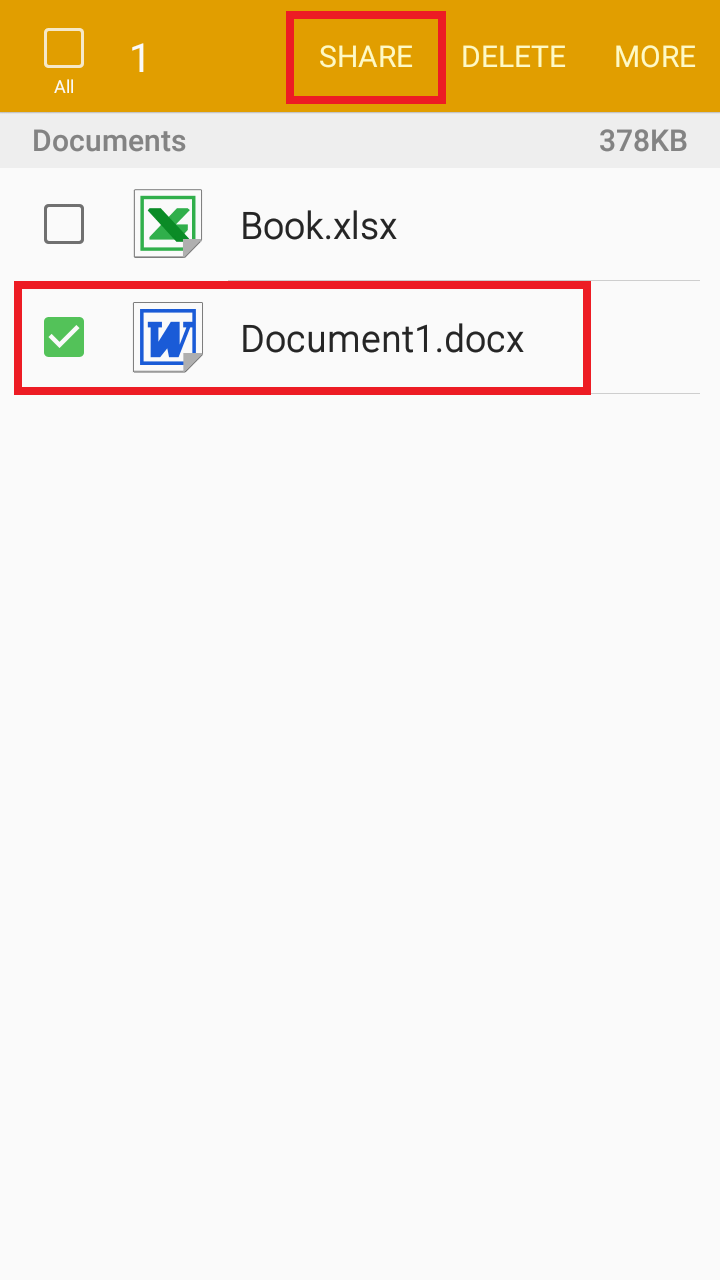
3.) Tap and hold the file which you needed to share until the checkbox appears.
You can select multiple files too if required.
Then tap "Share" menu.
5.) This will automatically open RushFiles app.
Choose the folder where you wanted to upload it, then tap Upload here to confirm.
2.) Search the folder where the file is located, in here we'll select "Documents"
4.) Select/tap "RushFiles" icon.