HOW TO SHARE OTHER FILE TYPES
(DOCUMENT FILES) IN IOS DEVICE

The share option in iPhone / iPad devices varies depending on the app installed. In this guide, we'll discuss only the recommended apps which can be used in iOS device.
PAGES OR KEYNOTE APPS
According to Apple source, customer can download some apps for free if their device was activated or purchased with iOS 9 or later on or after September 1, 2013.
If they purchased a 32 GB or larger device with iOS 9 or later, Pages and Keynote are 2 of the free apps which will be already installed on their device.
Reference: https://support.apple.com/en-mk/HT202794
Optional: Since the app may not be available for other customers, we suggest using "Docs to go free" instead.
1.) These 2 apps are also recommended to use when sharing document files.
The guide is applicable to both.
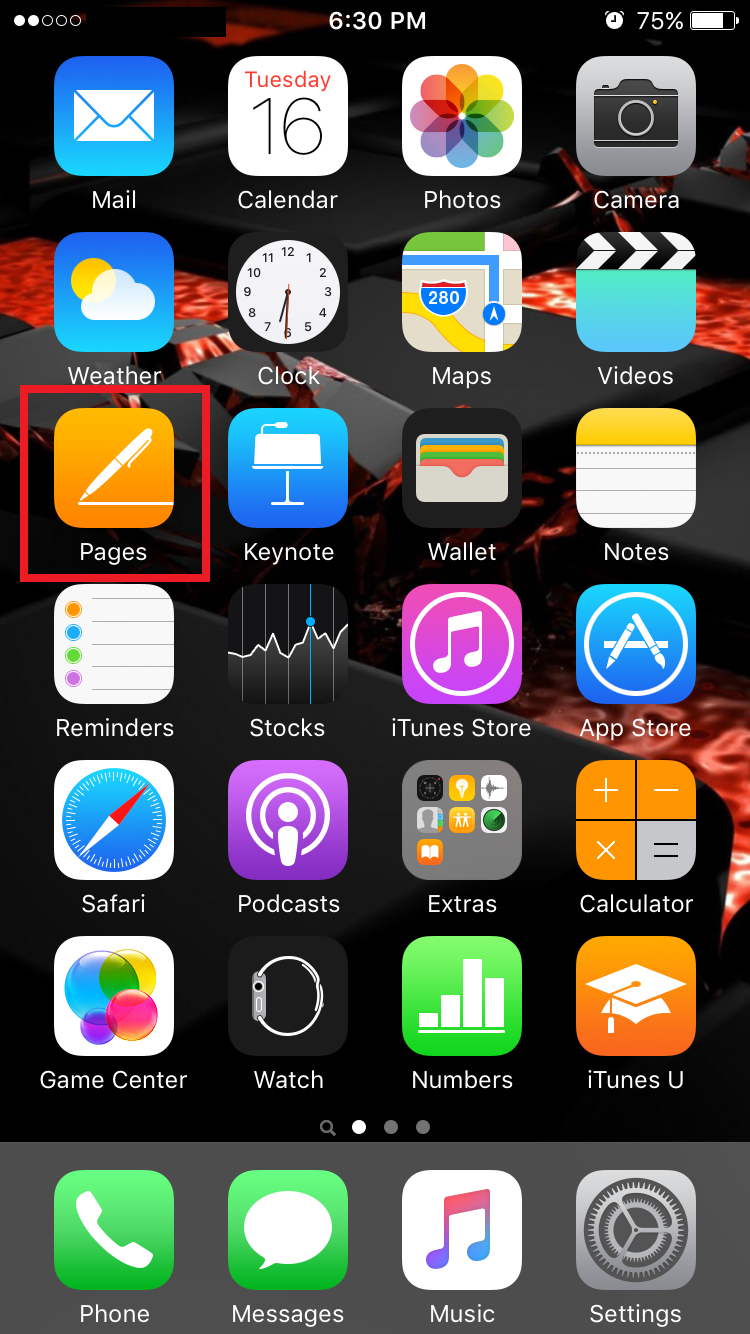
First open the app. In this example, we'll be using Pages.
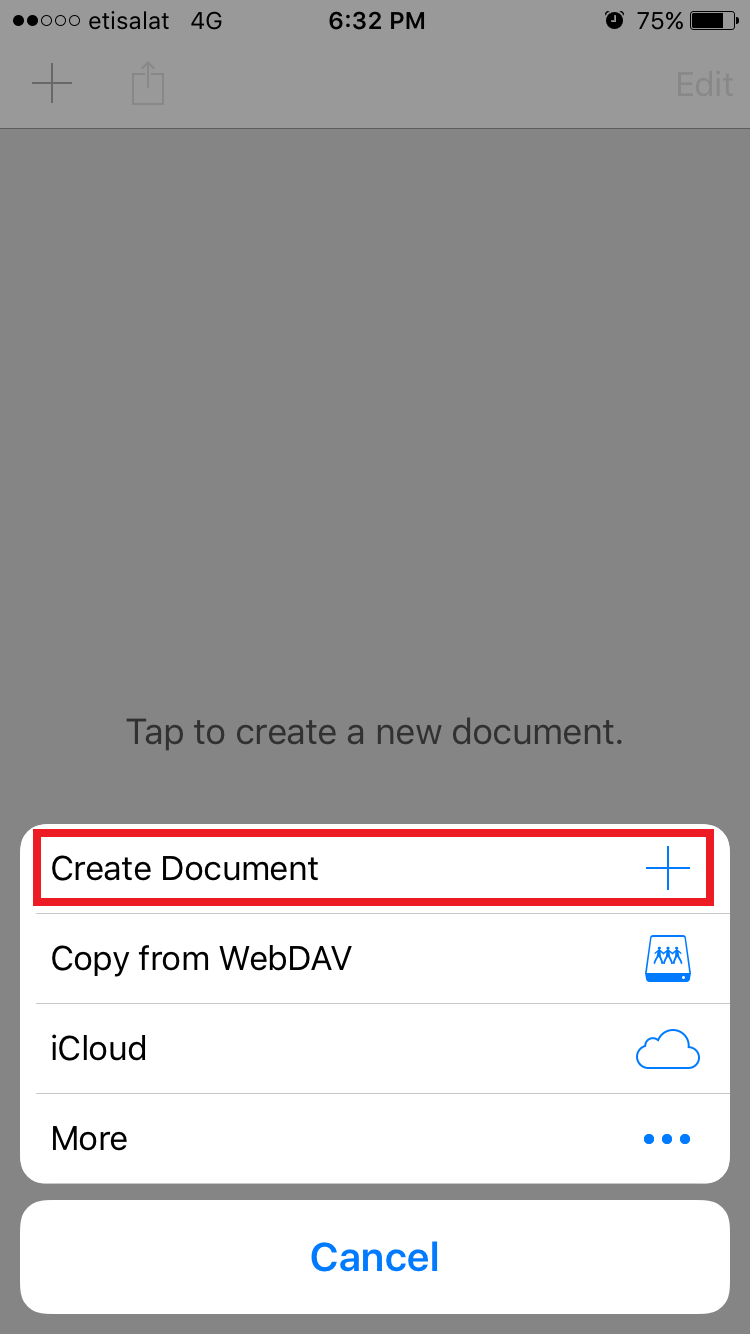
3.) Tap "Create Document"
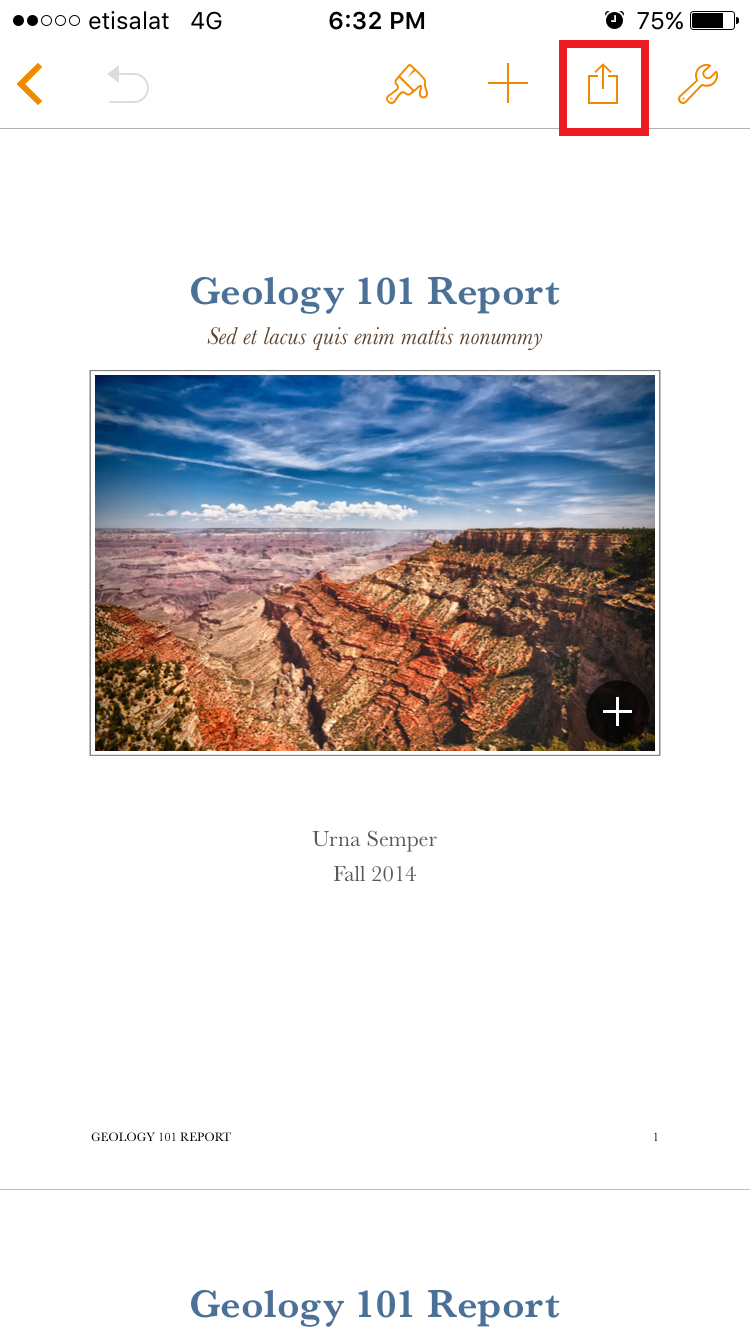
5.) Once you are finished with modifying the document, you can tap the share icon on top menu.
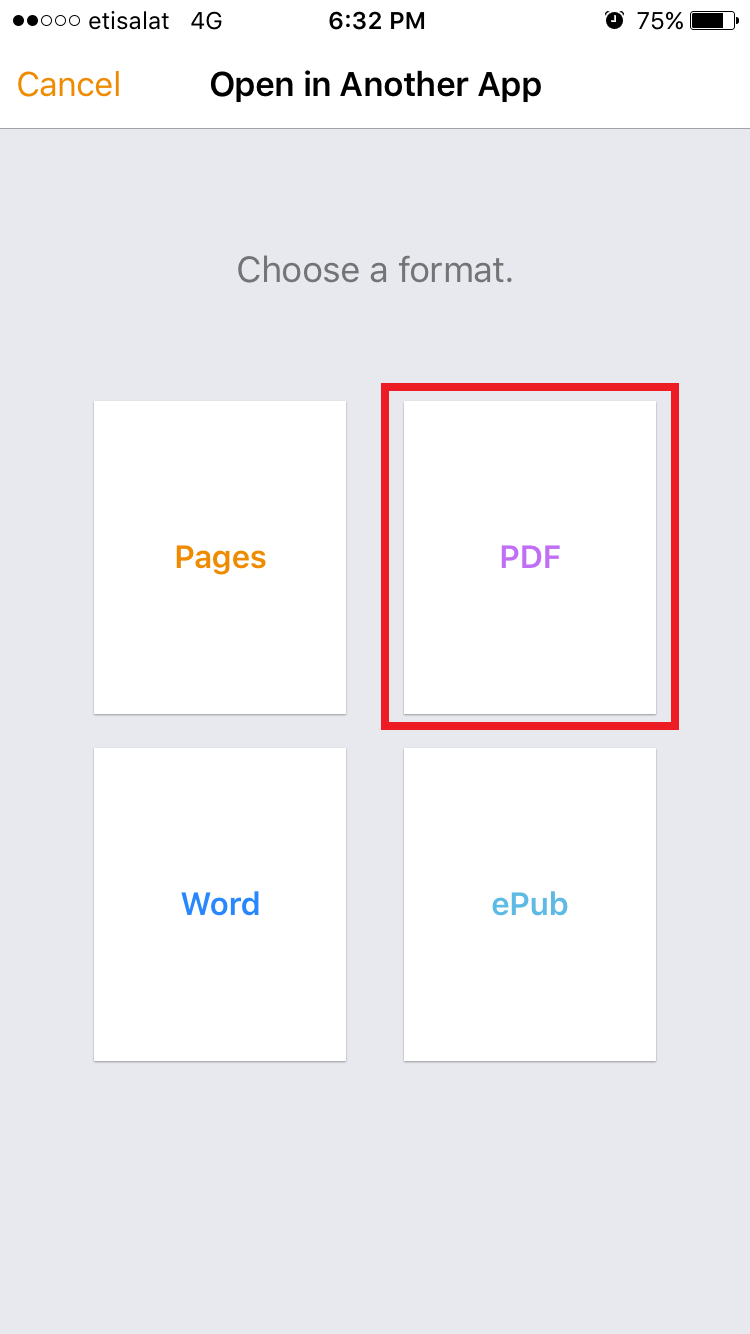
7.) Select which file format, in this example we choose PDF.
Tap the icon to proceed.
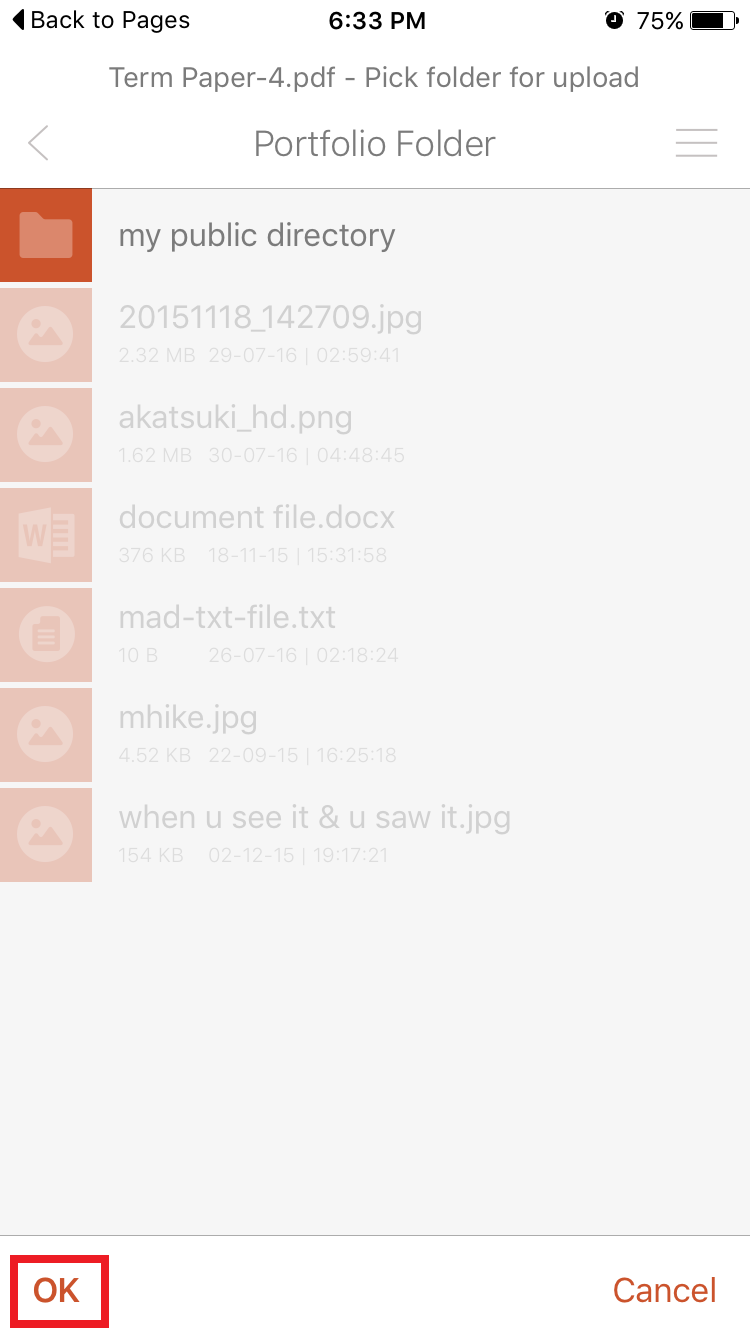
9.) This will automatically open RushFiles app.
Choose the folder where you wanted to upload it, then tap OK to confirm.
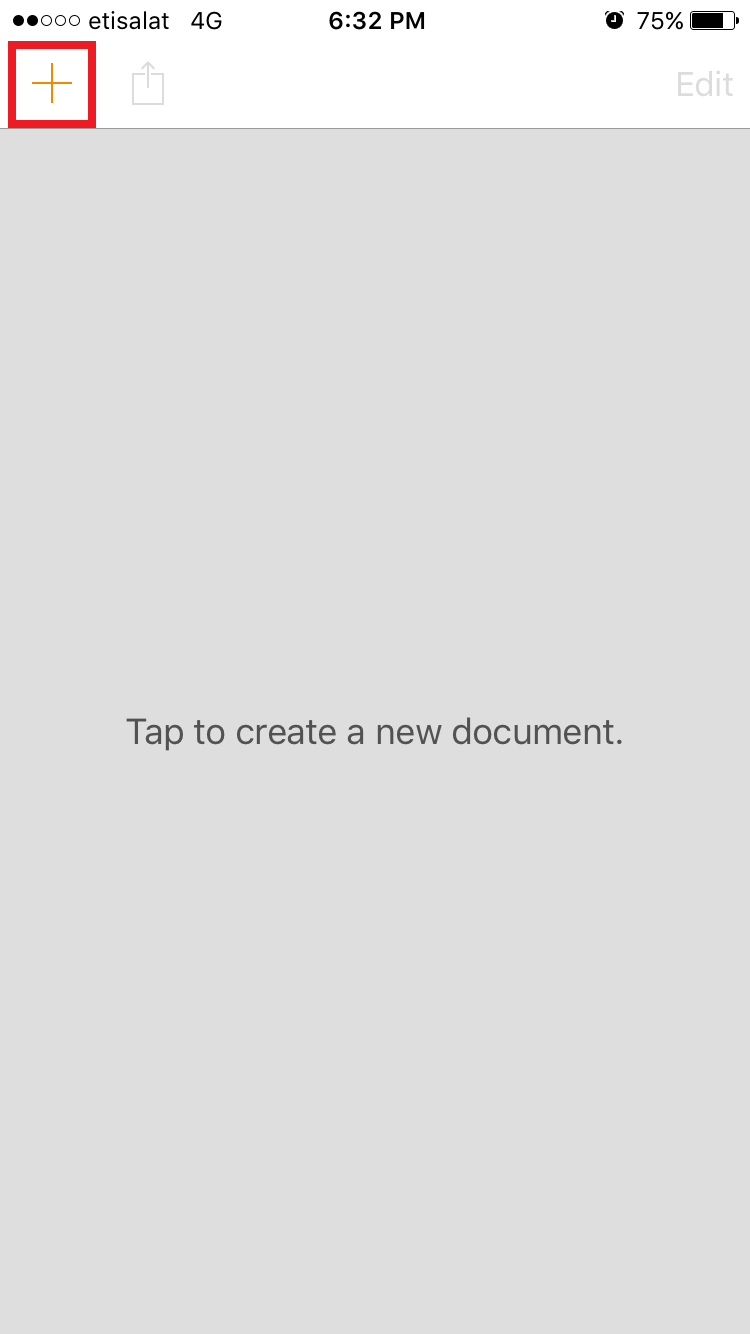
2.) Open the app, in this example we will be creating new document.
Tap + icon to continue.
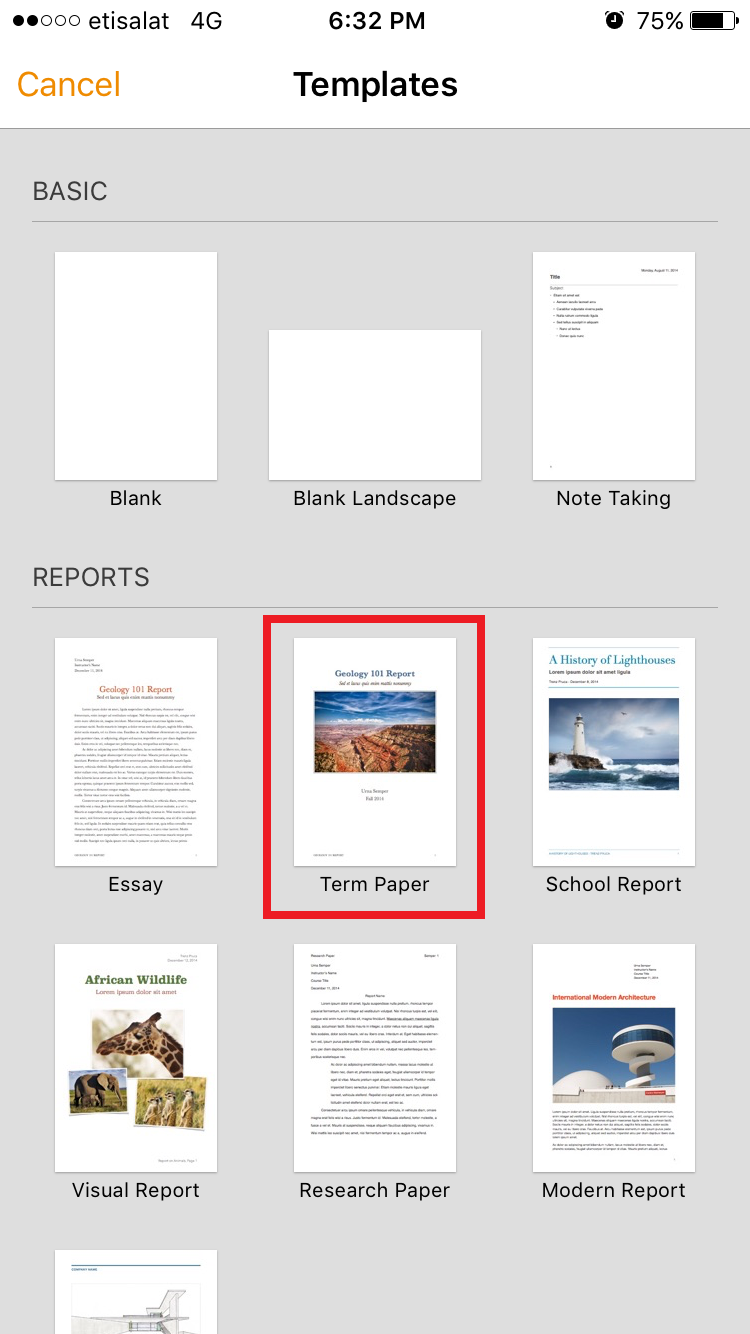
4.) Select which template you desire and just tap it to proceed.
6.) Tap "Open in Another App"
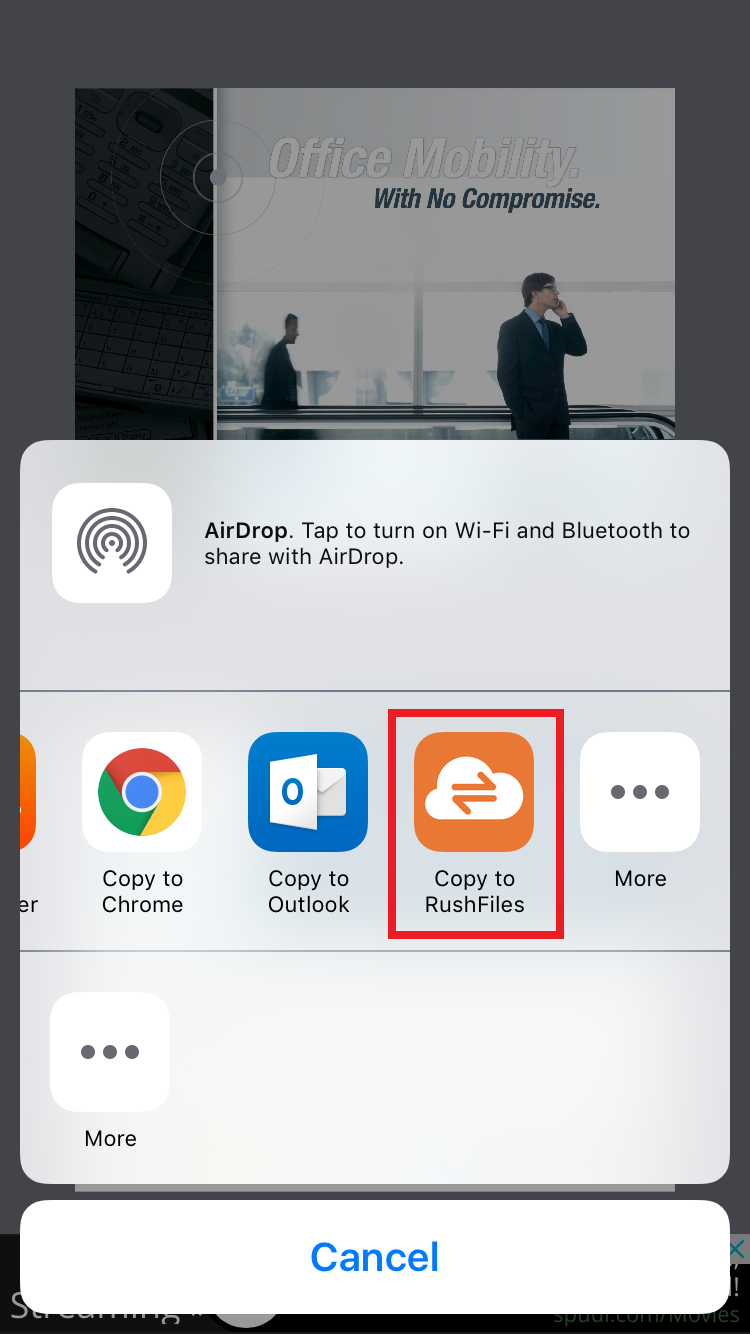
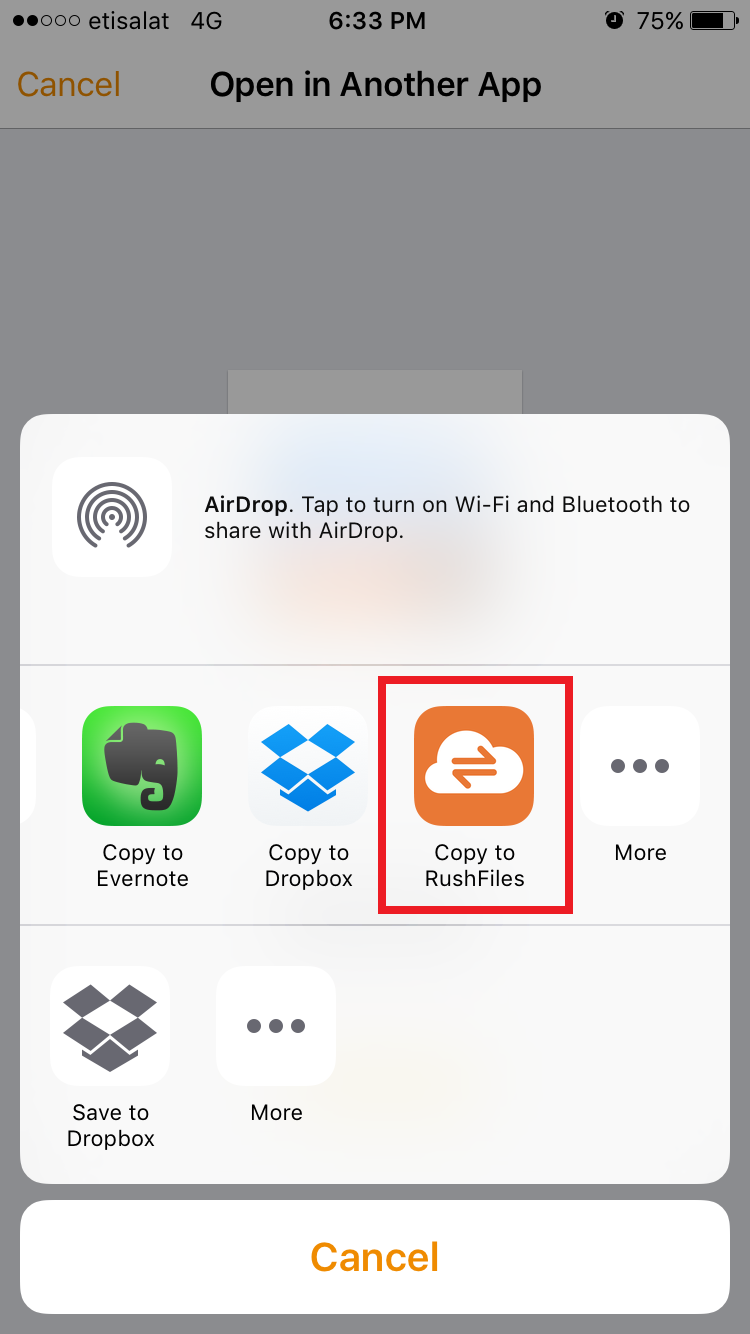
8.) Swipe to the right until you find the icon "Copy to RushFiles", tap this to continue.

DOCS TO GO FREE
1.) Docs to go is a free app which can be downloaded directly in Apple App Store. To start, search for the app "Docs to go free" and install this on your device.
3.) Once the file is open, tap the share icon on top menu.
5.) This will automatically open RushFiles app.
Choose the folder where you wanted to upload it, then tap OK to confirm.
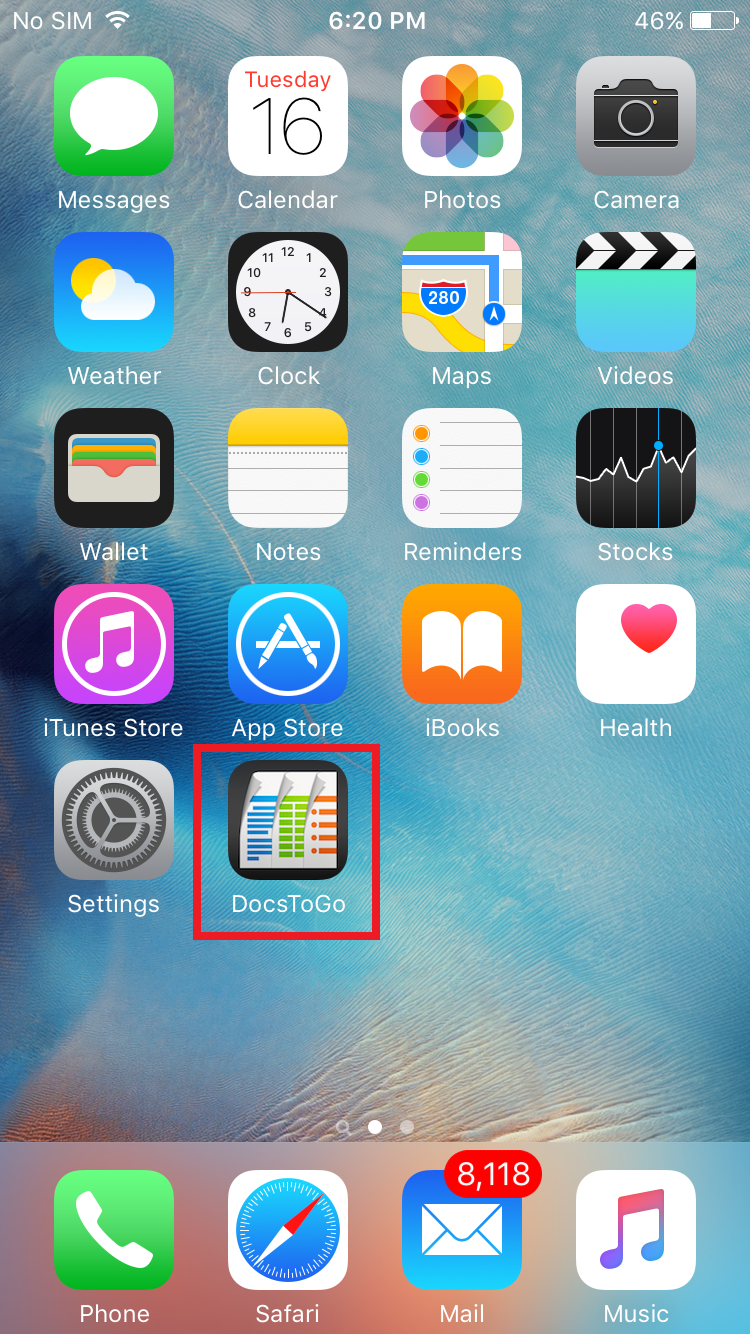

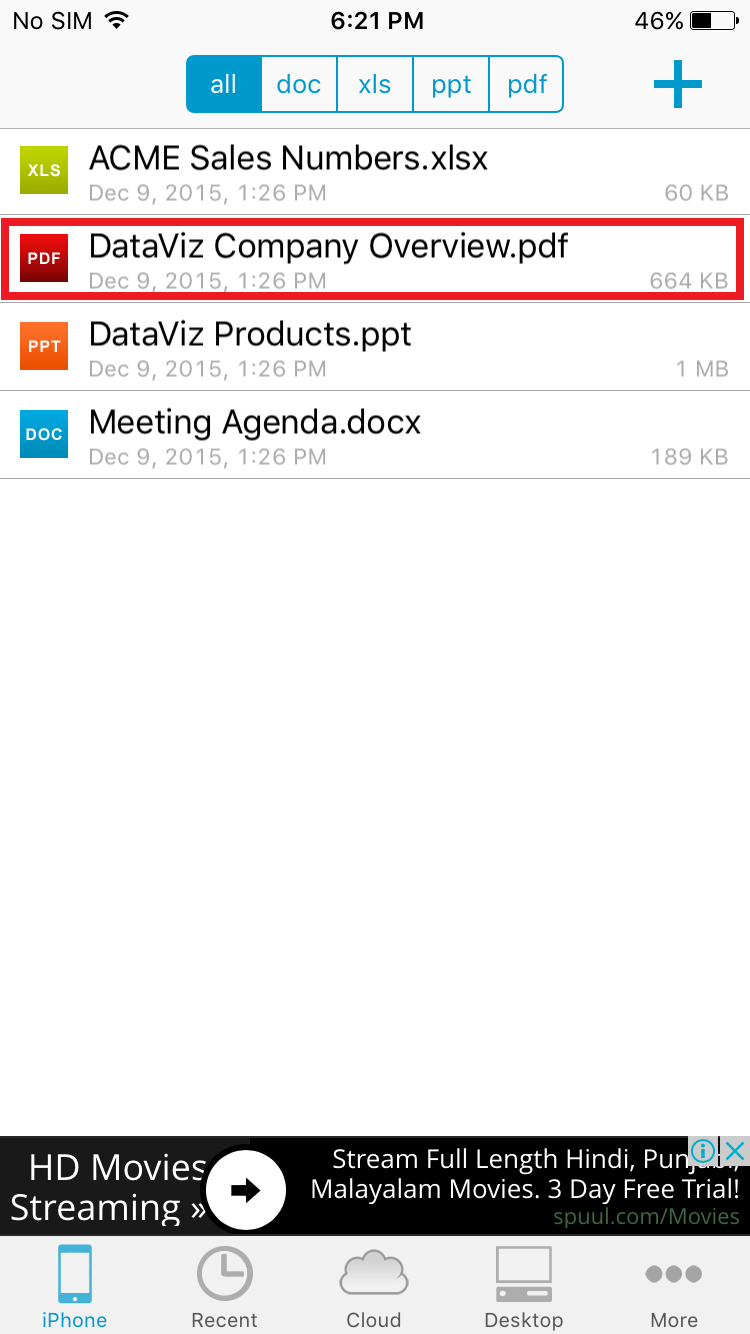
2.) Open the app, in this example we will be sharing the existing PDF file.
Open PDF file.
4.) Swipe to the right until you find the icon "Copy to RushFiles", tap this to continue.